What changes after fixing all SwiftLint warnings?
SwiftLint cleanup in a SwiftUI music app: what really improves — code quality, readability and reliability — and what doesn't get faster by itself.

If you run SwiftLint on a native SwiftUI iOS music app and fix every warning, what actually changes? Will the app become faster, will scrolling feel smoother, or will music playback become more reliable?
For a music streaming app built with SwiftUI and connected to a Navidrome server through the Subsonic API, the honest answer is: fixing all SwiftLint warnings is a valuable code-quality step, but it does not automatically improve runtime performance. The real impact depends on which warnings you fix and whether those changes improve the code that runs while the app is in use.
A Look at Modern Music App Interfaces
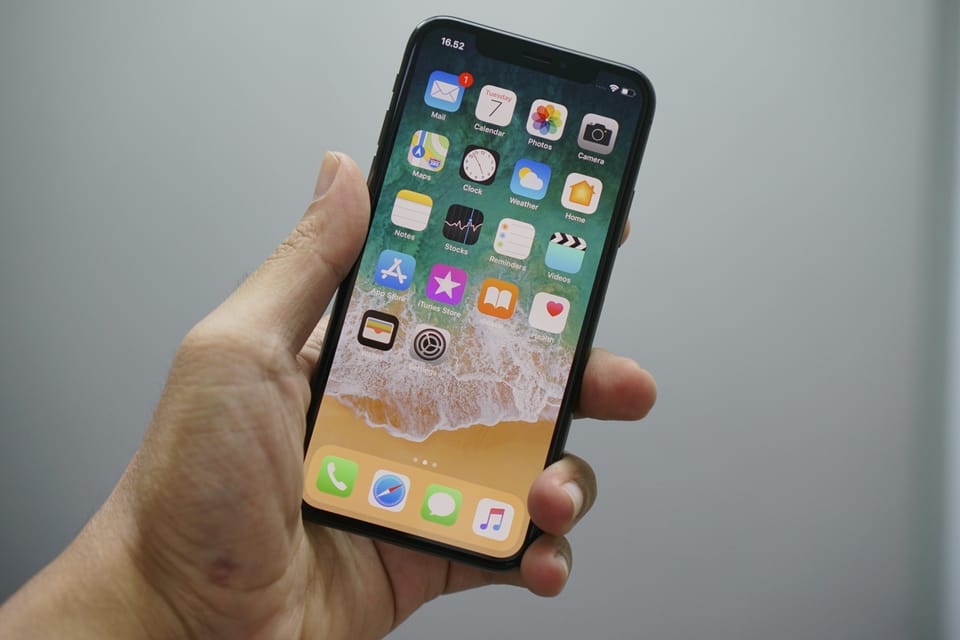
Music apps combine album artwork, scrolling libraries, playlists, and playback controls. These are the kinds of interfaces where good SwiftUI architecture and careful performance profiling can make a noticeable difference.


Image credit: Apple Music. Images are illustrative examples of music app interfaces and are not benchmarks of SwiftLint or SwiftUI performance.
1. What Changes After Fixing All SwiftLint Warnings?
Code Quality and Maintainability
High potential benefitCleaner, more consistent Swift code can be easier to read, debug, and maintain as the app grows. This is one of the clearest benefits of a lint cleanup.
Performance and Responsiveness
Usually little direct changeSwiftLint does not optimize execution speed. Performance may improve if a fix also corrects inefficient code, but formatting and naming changes will not speed up playback or navigation.
Scrolling and Animation Smoothness
Depends on the underlying codeSmoother scrolling comes from fixing real bottlenecks, such as expensive SwiftUI updates, synchronous artwork loading, heavy work on the main thread, or inefficient list rendering.
Reliability and Crash Prevention
Potentially meaningfulSome rules highlight risky patterns or encourage safer error handling. However, a clean SwiftLint scan does not guarantee a crash-free app.
2. Expected Impact on a Music Streaming App
The table below describes typical expectations, not measured results from a particular project.
| App Area | After SwiftLint Alone | What Actually Improves It |
|---|---|---|
| Home screen loading | Usually unchanged | Efficient view creation, caching, and well-managed network requests |
| Album and song scrolling | Usually unchanged | Lazy lists, optimized artwork loading, and fewer unnecessary redraws |
| Mini-player animations | Usually unchanged | Lightweight animations and efficient state updates |
| Music playback | Usually unchanged | Audio-session management and reliable playback-state handling |
| Search responsiveness | Usually unchanged | Debouncing and efficient filtering away from the main thread when appropriate |
| Large playlists | Usually unchanged | Lazy rendering, pagination where appropriate, and reduced processing |
| Memory usage | Usually unchanged | Reasonable image-cache limits and releasing unused resources |
| Crash resistance | Possible improvement | Safer handling of concurrency, lifecycle events, and errors |
| Code maintenance | Often improves | Consistent conventions and simpler, clearer code |
3. Which SwiftLint Warnings Are Worth Prioritizing?
Not all warnings have the same value. Prioritize findings that point to a genuine engineering risk rather than treating every warning as a performance issue.
1. Force Unwrapping and Unsafe Assumptions
Review force unwraps (!), forced casts, and assumptions that values always exist. Fixing genuine hazards can prevent runtime crashes, although not every force unwrap is necessarily a bug.
2. Main-Thread and Concurrency Issues
SwiftLint is not a complete concurrency analyzer. Separately review @MainActor, asynchronous tasks, cancellation, and whether network calls or image processing block the UI.
3. Complex and Oversized SwiftUI Views
Simplifying complex view logic can make the code easier to maintain and performance problems easier to diagnose. Splitting a view into smaller components does not, by itself, guarantee faster rendering.
4. Formatting, Naming, and File-Length Rules
These rules support consistency and readability, but they generally have no measurable effect on scrolling, memory use, or playback performance.
4. What Will Actually Make the App Feel Smoother?
For a Navidrome-powered music player, these are the areas worth investigating after the lint cleanup.
⚡ Instant-Feeling Navigation
Cache recently loaded albums, artists, and playlists so returning to a screen does not trigger unnecessary full reloads.
🖼️ Smooth Library Scrolling
Use LazyVStack or LazyVGrid where appropriate, and load artwork asynchronously with sensible caching.
🔎 Responsive Search
Avoid repeatedly filtering a large library on the main thread. Use debouncing and efficient search strategies where they help.
🧭 Fast Screen Transitions
Avoid synchronous network requests, image decoding, or expensive calculations during navigation and other UI interactions.
🎵 Stable Playback
Keep the audio engine and playback state independent of individual view lifecycles so moving between screens does not interrupt music.
🔄 Efficient State Updates
Avoid causing an entire library view to update when only a small component, such as the mini-player, needs new information.
These targeted optimizations can have a much greater impact on perceived quality than eliminating style warnings. The right fix depends on what profiling reveals in the actual app.
5. A Practical Workflow After the SwiftLint Scan
Run SwiftLint and Fix Legitimate Warnings
Understand each warning before changing the code. Avoid blindly suppressing rules or making broad rewrites just to achieve a zero-warning report. Preserve existing behavior.
Build and Test the App
Verify playback, downloads, search, playlists, navigation, background playback, and reconnecting to Navidrome. Confirm that the cleanup has not introduced regressions.
Profile Real Performance
Use Apple's Instruments tools to investigate SwiftUI updates, animation hitches, main-thread activity, memory usage, and image decoding. Test on a real device where possible.
Optimize the Measured Bottlenecks
Compare before and after on the same device, with the same music library and similar network conditions. Measure rather than assuming a change made the app faster.
My Recommendation
Complete the SwiftLint cleanup, but treat it as a code-quality milestone—not a performance optimization project.
A zero-warning scan is useful, but a smooth, responsive app also requires profiling and targeted fixes. Keep the changes focused, build and test after each meaningful batch, and avoid suppressing warnings without understanding them.
If you use an AI coding agent to do the work, ask it to explain each meaningful fix, avoid unrelated refactoring, and report the build and test results. A clean lint report is not proof of better performance.
The most useful next step is to review the actual SwiftLint output and classify the findings into three groups: runtime-safety concerns, issues worth investigating for performance, and purely stylistic warnings. That gives you a realistic plan for improving the app rather than just reducing the warning count.